Reading and Writing Data to Excel File in Java using Apache POI

In Java, reading an Excel file is not similar to reading a Word file because of cells in an Excel file. JDK does not provide a direct API to read data from Excel files for which we have to toggle to a third-party library that is Apache POI. Apache POI is an open-source java library designed for reading and writing Microsoft documents in order to create and manipulate various file formats based on Microsoft Office. Using POI, one should be able to perform create, modify and display/read operations on the following file formats.
For Example, Java doesn’t provide built-in support for working with excel files, so we need to look for open-source APIs for the job. Apache POI provides Java API for manipulating various file formats based on the Office Open XML (OOXML) standard and OLE2 standard from Microsoft. Apache POI releases are available under the Apache License (V2.0).
Writing an Excel File
Earlier we introduced Apache POI- a Java API useful for interacting with Microsoft Office documents. Now we’ll see how can we read and write to an excel file using the API.
Procedure: Writing a file using POI is very simple and involve the following steps:
Create a workbook
Create a sheet in the workbook
Create a row in the sheet
Add cells in the sheet
Repeat steps 3 and 4 to write more data.
Close the output stream.
Example:
Java
// Java Program to Illustrate Writing// Data to Excel File using Apache POI// Import statementsimportjava.io.FileOutputStream;importjava.io.IOException;importorg.apache.poi.ss.usermodel.Cell;importorg.apache.poi.ss.usermodel.Row;importorg.apache.poi.xssf.usermodel.XSSFSheet;importorg.apache.poi.xssf.usermodel.XSSFWorkbook;// Main classpublicclassGFG {// Main driver methodpublicstaticvoidmain(String[] args){// Blank workbookXSSFWorkbook workbook = newXSSFWorkbook();// Creating a blank Excel sheetXSSFSheet sheet= workbook.createSheet("student Details");// Creating an empty TreeMap of string and Object][]// typeMap<String, Object[]> data= newTreeMap<String, Object[]>();// Writing data to Object[]// using put() methoddata.put("1",newObject[] { "ID", "NAME", "LASTNAME"});data.put("2",newObject[] { 1, "Pankaj", "Kumar"});data.put("3",newObject[] { 2, "Prakashni", "Yadav"});data.put("4", newObject[] { 3, "Ayan", "Mondal"});data.put("5", newObject[] { 4, "Virat", "kohli"});// Iterating over data and writing it to sheetSet<String> keyset = data.keySet();intrownum = 0;for(String key : keyset) {// Creating a new row in the sheetRow row = sheet.createRow(rownum++);Object[] objArr = data.get(key);intcellnum = 0;for(Object obj : objArr) {// This line creates a cell in the next// column of that rowCell cell = row.createCell(cellnum++);if(obj instanceofString)cell.setCellValue((String)obj);elseif(obj instanceofInteger)cell.setCellValue((Integer)obj);}}// Try block to check for exceptionstry{// Writing the workbookFileOutputStream out = newFileOutputStream(newFile("gfgcontribute.xlsx"));workbook.write(out);// Closing file output connectionsout.close();// Console message for successful execution of// programSystem.out.println("gfgcontribute.xlsx written successfully on disk.");}// Catch block to handle exceptionscatch(Exception e) {// Display exceptions along with line number// using printStackTrace() methode.printStackTrace();}}}Reading an Excel file
Procedure: Reading an excel file is also very simple if we divide this into steps.
Create workbook instance from excel sheet
Get to the desired sheet
Increment row number
iterate over all cells in a row
repeat steps 3 and 4 until all data is read.
Close the output stream.
Example:
- Java
|
Output:
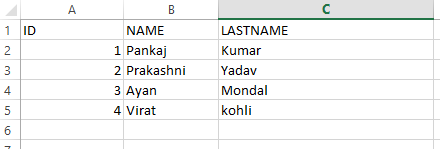
Geeks, now you must be wondering what if we need to read a file at a different location, so the below example explains it all.
Example 1-A:
// Java Program to Read a File From Different Location

// Getting file from local directory
private static final String FILE_NAME
    = "C:\\Users\\pankaj\\Desktop\\projectOutput\\mobilitymodel.xlsx";

// Method
public static void write() throws IOException, InvalidFormatException
{

    InputStream inp = new FileInputStream(FILE_NAME);
    Workbook wb = WorkbookFactory.create(inp);
    Sheet sheet = wb.getSheetAt(0);
    ........
}
Example 1-B:
// Reading and Writing data to excel file using Apache POI // Via Appending to the Existing File // Getting the path from the local directory private static final String FILE_NAME = "C:\\Users\\pankaj\\Desktop\\projectOutput\\blo.xlsx"; // Method public static void write() throws IOException, InvalidFormatException { InputStream inp = new FileInputStream(FILE_NAME); Workbook wb = WorkbookFactory.create(inp); Sheet sheet = wb.getSheetAt(0); int num = sheet.getLastRowNum(); Row row = sheet.createRow(++num); row.createCell(0).setCellValue("xyz"); ..... .. // Now it will write the output to a file FileOutputStream fileOut = new FileOutputStream(FILE_NAME); wb.write(fileOut); // Closing the file connections fileOut.close(); }