1. Write a Selenium script to automate the following task:
How to Open Chrome Browser Using Selenium in Java?
Selenium is an open-source popular web-based automation tool. The major advantage of using selenium is, it supports all browsers like Google Chrome, Microsoft Edge, Mozilla Firefox, and Safari, works on all major OS, and its scripts are written in various languages i.e Java, Python, JavaScript, C#, etc. We will be working with Java. In this article, let us consider a test case in which we will try to automate the following scenarios in the Google Chrome browser.
Launch Chrome browser.
Maximize the browser.
Open URL: https://www.geeksforgeeks.org/
For invoking the chrome browser, we need the Eclipse IDE, Selenium Grid(version 4), and Chrome web Driver.
Installation
Eclipse IDE: Before downloading also make sure that your device has Java JDK. If you don’t have, install Java refer to this: How to Download and Install Java for 64 bit machine?. And install Eclipse IDE by referring to this article Eclipse IDE for Java Developers.
Selenium: Download the Selenium latest stable version here.
Web Driver: Web drivers is a package to interact with a web browser. It interacts with the web browser or a remote web server through a wire protocol which is common to all. Download Chrome Driver according to your Chrome Version here.
Step by Step Implementation
Step 1:
Open the Eclipse IDE and create a new Java project. Right-click on the “src” folder and create a new Class File from New > Class. Give the Class name and click on the “Finish” button.
Step 2:
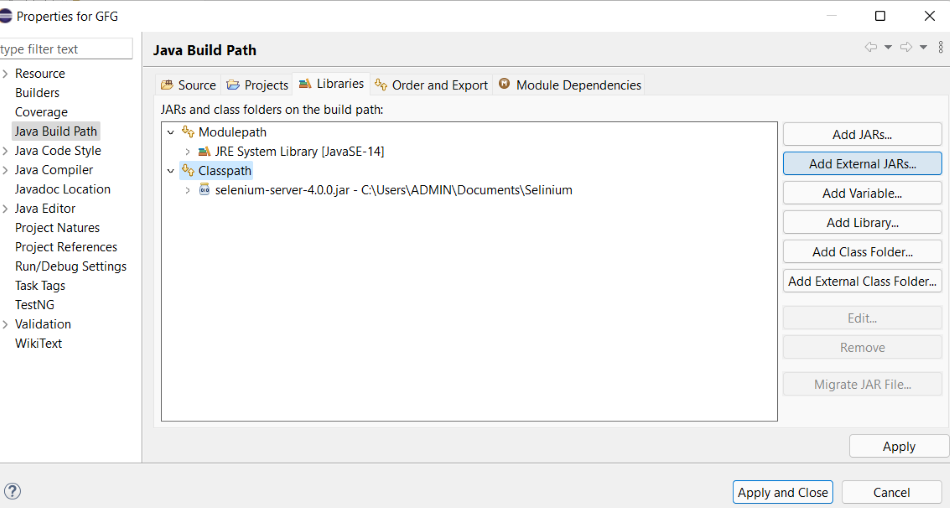
Add Selenium JAR file into the Java Project. Right-click on Class name and Select “Build Path” and select > configure build path

Then select Libraries > Classpath > and Click “Add External JAR’s”, now add the Selenium Jar and click “Apply and Finish”
Selenium is an open-source Web-Automation tool that is used to automate web Browser Testing. The major advantage of using selenium is, that it supports all major web browsers and works on all major Operating Systems, and it supports writing scripts on various languages such as Java, JavaScript, C# and Python, etc. While automating a webpage, we are required to fetch and check all the available links present on the webpage, In this article, we will learn to get all the available links present on a page using “TagName”.
As we know all the links are of type anchor tag “a” in HTML. For Example,
<a href=”geeksforgeeks.org”>geeksforgeeks</a>
Table of Content
How to fetch all the links on a webpage?
Navigate to the webpage.
Get the list of WebElements with the TagName “a”.
List<WebElement> links=driver.findElements(By.tagName(“a”));
Iterate through the List of WebElements.
Print the link text.
Sample Code Example to Scrape Links
In this example, we are navigating to the URL “https://www.geeksforgeeks.org/” and print the link text of all available links on the page.
public class Geeks {

    WebDriverManager.chromedriver().setup();
    WebDriver driver = new ChromeDriver();
    driver.manage().window().maximize();
    driver.get("https://www.geeksforgeeks.org/");

    // Get all the available Links
    List<WebElement> links
        = driver.findElements(By.tagName("a"));

    // Iterating through all the Links and printing link
    // text
    for (WebElement link : links) {
        System.out.println(link.getText());
    }

    driver.close();
}
Output:
This program will get all the Links in the List of WebElements and print all the link texts.
